
Background
If you are running the Local WP Development App on your Windows operating system and it’s running very slowly, then this quick tutorial guide can help. This is in relation to also using the Prime Mover plugin with the Local WP app. This will speed up and boost performance when running both export and import, particularly if your site is large and uses a lot of plugins.
Exclude the Local Sites folder and executable in real-time scans
- Go to Windows Security.
- Click “Virus & Threat protection“.
- Under “Virus & Threat protection settings,” click “Manage settings“.
- Scroll down to “Exclusions” and click “Add or remove exclusions“.
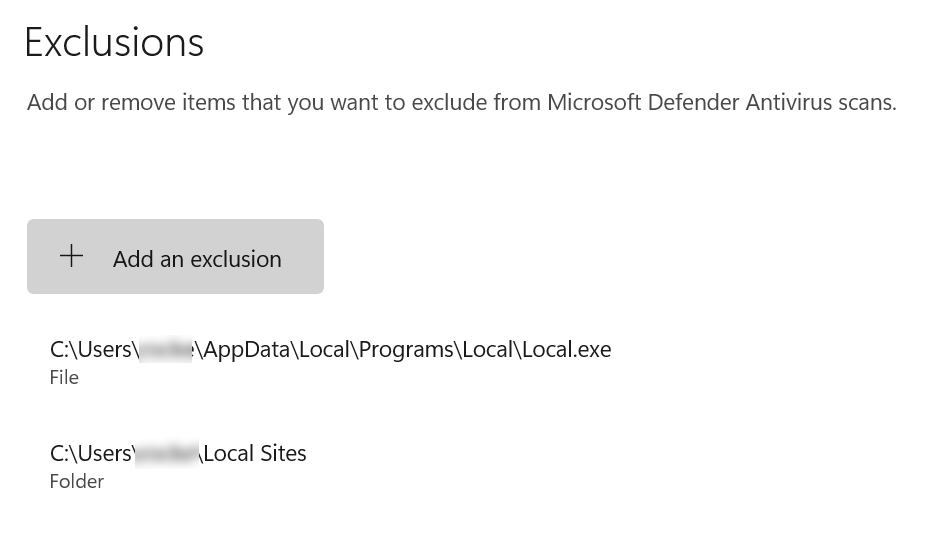
Ensure that you exclude two items: the Local Sites folder and the Local executable file (Local.exe).
To exclude Local.exe:
- Click the “Add an exclusion” button.
- Click “File”.
- Navigate to the Local.exe file path, e.g.
C:\Users\yourusername\AppData\Local\Programs\Local\Local.exe
To exclude the Local Sites folder:
- Click the “Add an exclusion” button.
- Click “Folder”.
- Enter the path to your Local sites folder, e.g.
C:\Users\yourusername\Local Sites
After adding those two, it should look like this:
Turn off game mode
- Go to Game Mode settings.
- Make sure Game mode is off.
The reason is that by turning off Game mode, it prioritizes background processes, on which Local WP is based.

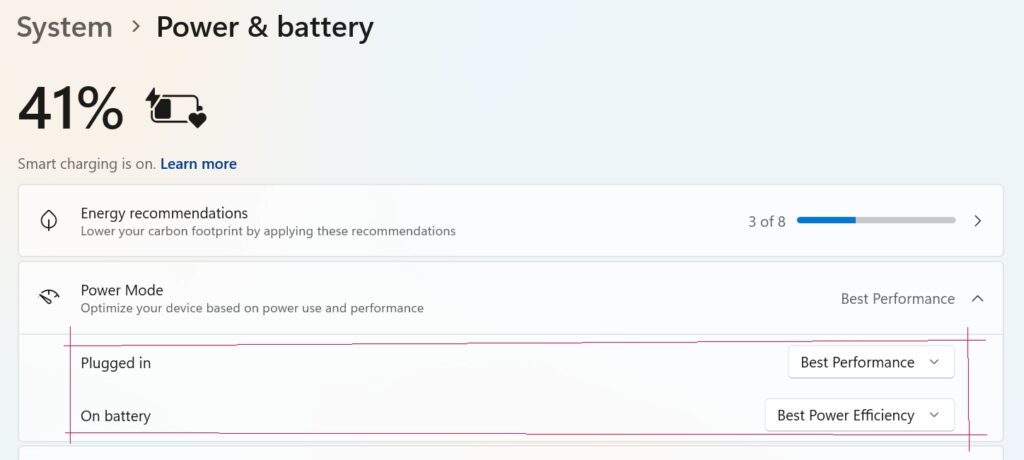
Set for “Best performance” when plugged in
- Go to System -> Power & Battery.
- Expand “Power mode“.
- Ensure that “Best performance” is selected when plugged in.
This will ensure that the CPU and system are optimized for the best performance when you have plugged in your laptop or Desktop. This is typically useful if you are using Local WP with a laptop that is plugged in.
Improvement
We tested the above settings, and it significantly sped up the local WordPress export and import using the Prime Mover plugin. Try it on your own and hope it helps you, too!