
Key takeaways
- Prime Mover plugin won’t activate if it detects permission issues.
- You won’t be able to export your site or restore a package if permission issues are detected.
- Correct permission issues are required for export and import because these processes need to:
- Open and read the file contents (e.g., those exported from your site, such as the site database, media files, plugins, or themes).
- Create a new file and write these contents to an archive or a directory.
- Without the correct file permissions, it is impossible to complete the required processes above.
This guide assumes you are using the latest version of the Prime Mover plugin – ideally starting Prime Mover 2.1.2+. If you are using an outdated version, please update to the latest version before using this guide.
Troubleshooting guide
- Activate or Network activate Prime Mover plugin (FREE or PRO version).
- If serious permission issues are detected, the plugin will automatically deactivate and return an error. For example, let’s assume the uploads directory is not writable:
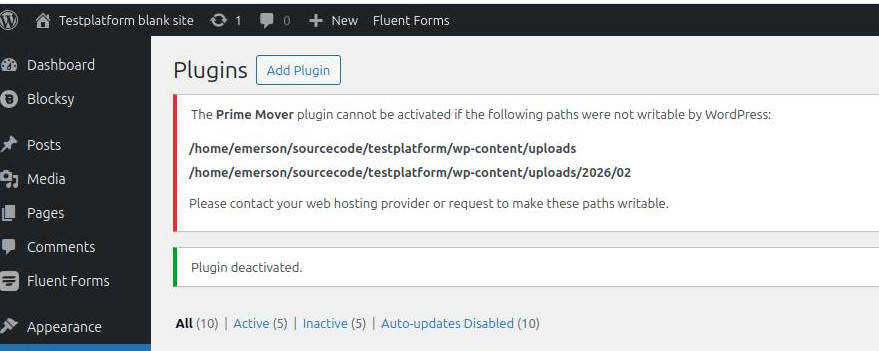
For the above error, you must first address the permission issues and ensure that WordPress and PHP have read and write permissions to the error path shown in the screenshot above. /home/emerson/sourcecode/testplatform/wp-content/uploads/
- Once activated on a WordPress single site, permission issues can still occur. You will know this because you cannot export and import. Error messages are clear that this is the issue, e.g.
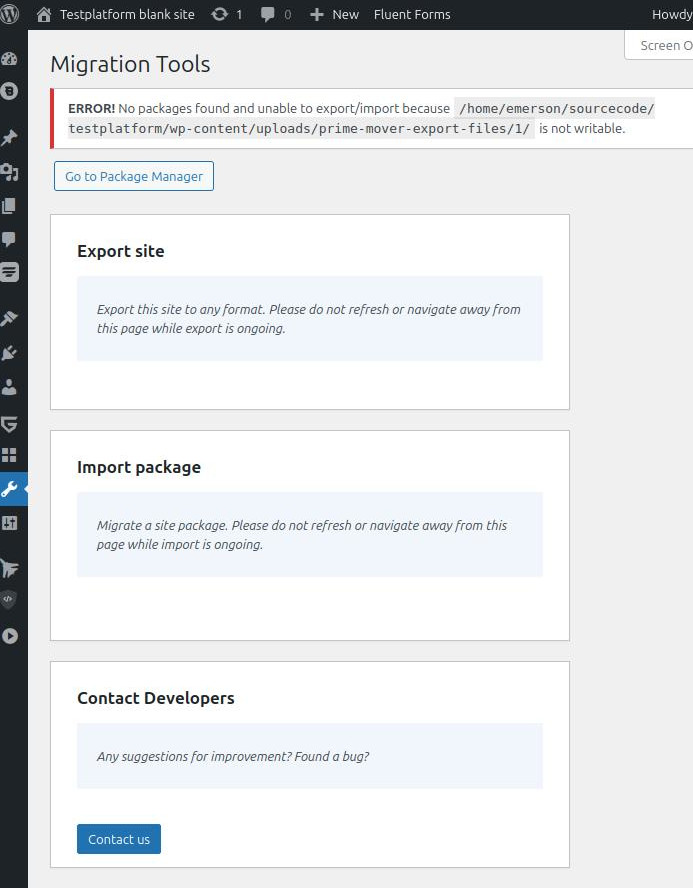
In the above example screenshot, a permission issue is detected in this path:
/home/emerson/sourcecode/testplatform/wp-content/uploads/prime-mover-export-files/1/
Therefore, the export and import buttons are not available in Tools -> Migration Tools until the permission issue is resolved.
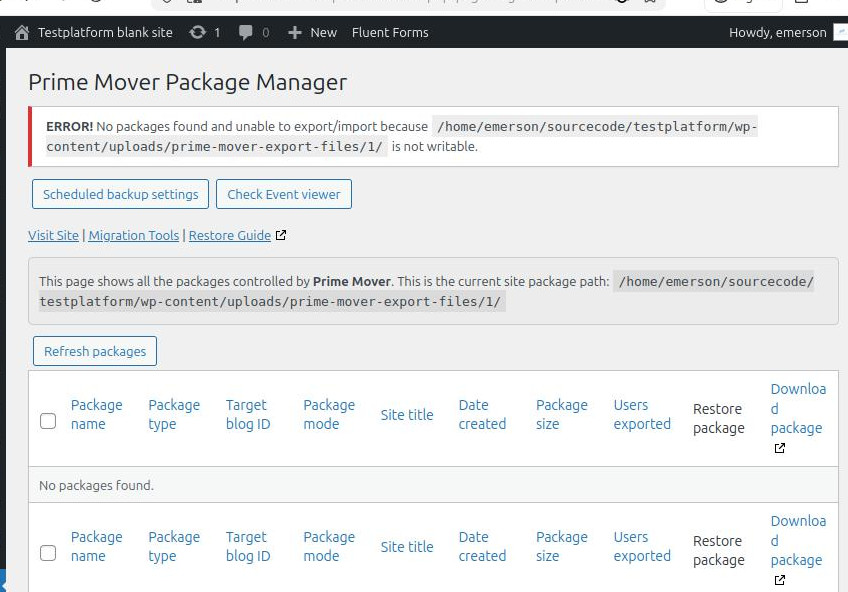
This error is also visible in Prime Mover -> Packages. Prime Mover does not display the packages due to a permission issue, and you cannot create a new package.
- If you are network-activating Prime Mover in a multisite environment, permission handling is the same as in a single-site environment. In multisite, the subsite export and import buttons are unusable if a permission issue is detected in the assigned export folders. For example:
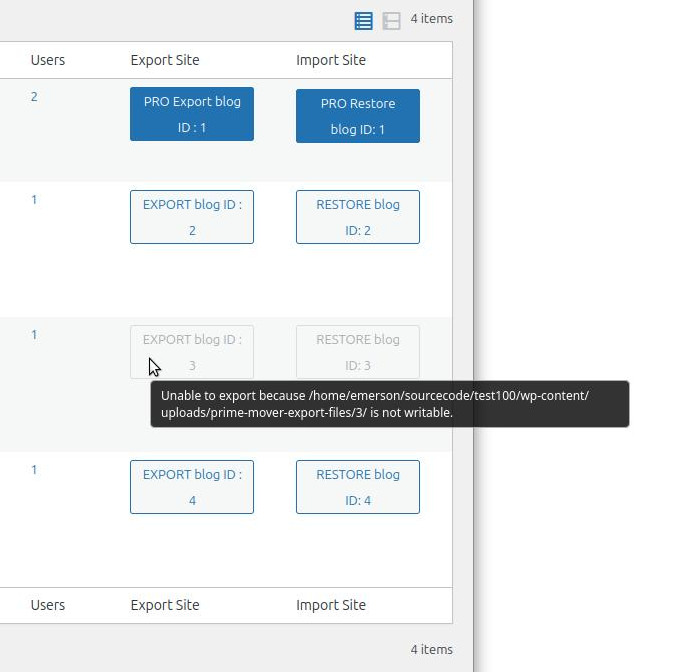
In the screenshot above, in the Sites -> Network admin section of a multisite environment, the export and restore buttons for subsite blog ID 3 are disabled because a permission issue is detected.
If you mouse over the disabled button, the error message displays the path with the permission issue. You need to fix the permissions affecting these paths so that you can export or restore.
Fixing guide
Fixing the permission issues requires access to your server directories and files. It can be fixed in any of the following ways:
- The easiest way is to use your shared hosting “fix file permission” tool, if available. For example, this is available in Hostinger, as shown below:
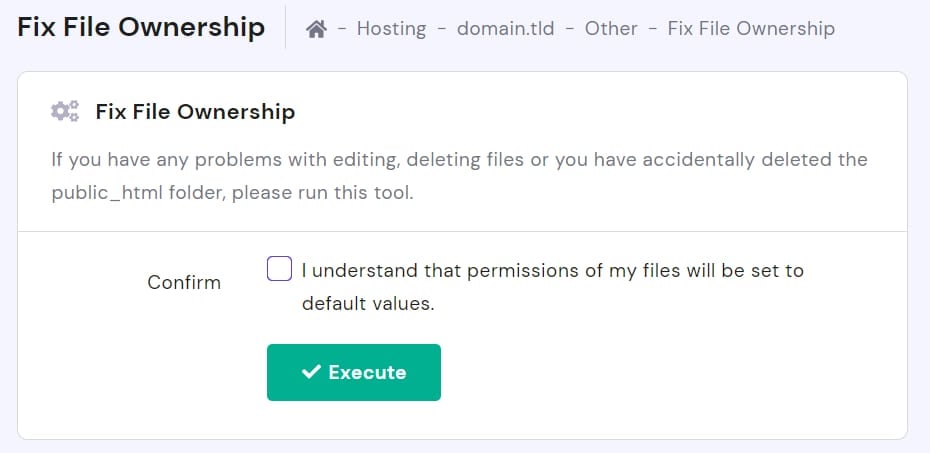
- Another option is to use your SFTP file manager app, such as FileZilla, and then fix the permissions there. Every site has unique permission configurations, so it’s best to consult your web hosting provider for the recommended settings. In a WordPress hosting environment (in Linux), the most common is to use 755 for directories and 644 for files. And then make sure the owner has read and write access to those files/folders.
Of course, advanced users (such as Linux administrators) can always use SSH and command-line tools to fix these issues.
You will know that the issues are fixed when:
- Export and import/restore buttons appear and are usable(or clickable).
- You will see the package listed in the package manager.
- Prime Mover plugin is fully activated without errors.