
Definition
The corrupted WPRIME package still has wprime file extension. It looks like a normal WPRIME package. However, it cannot be restored or read by the Prime Mover plugin because it is incomplete, unreadable, or damaged. There are many causes of corrupted packages, but the most common cause is when it’s partially downloaded from your web host.
Symptoms
- You will get “Corrupt package error” when restoring the package via upload.
- [PRO USERS] You will get “Corrupt package error” when restoring the package via the remote URL feature (direct site-to-site migration).
- When you try to restore the package via Prime Mover -> Packages, it cannot be restored or appears in the package manager as corrupted.
- In some cases (if you are using an older version of Prime Mover), you will get “File type error“.
- In general, any error message saying that the WPRIME package is corrupted.
- If you have renamed the file extension, e.g., from .wprime to .tar, Prime Mover cannot recognize it and will appear corrupted.
Solutions
- [OPTIONAL – PRO USERS ONLY – IF THIS OCCURRED DURING REMOTE URL MIGRATION] – Check that
curl_execis not disabled or listed in the php.inidisable_functiondirective: https://www.php.net/manual/en/ini.core.php#ini.disable-functions. - Log in to the site where the package is created. This is your source site where you have created the Prime Mover
WPRIMEpackage. - Go to Prime Mover -> Packages. It should list all created packages. Find your created packages in this list. For example, this is how it looks:
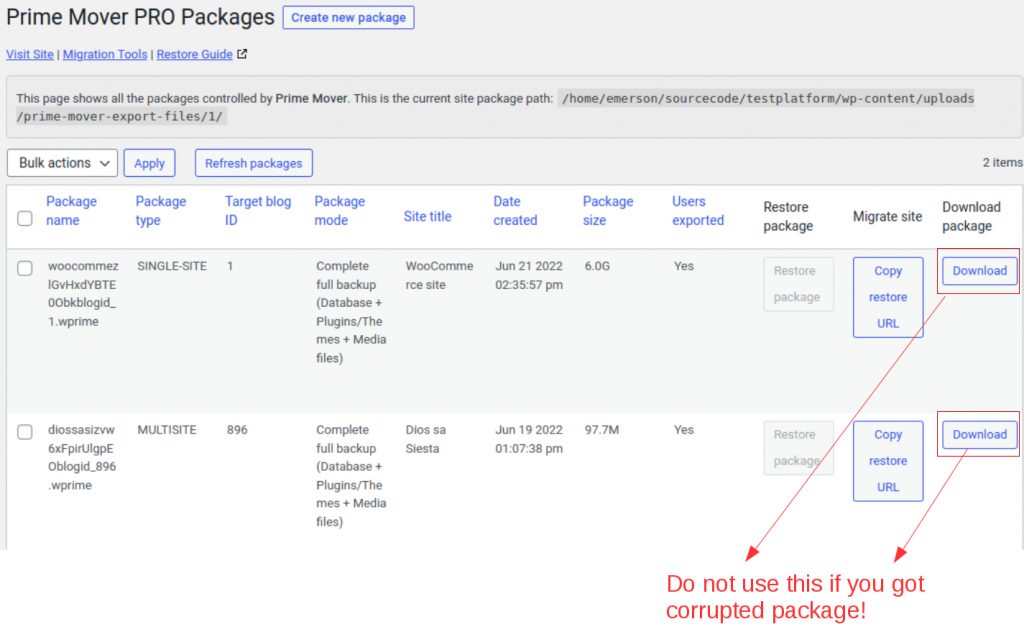
- If the package is listed there, it’s not actually corrupted; it gets corrupted when it’s downloaded.
- Once you find the correct package to download, please download it using another method to ensure it does not get corrupted again.
IMPORTANT: Do NOT download the package using the native “Download” button in Package Manager, as this can be problematic for some shared web hosts. More details in this section.
- Once you have downloaded the package either via SFTP or your hosting File manager, double-check the file size. You should get a similar file size as shown in the package manager.
- Don’t change the file extension or modify the package contents. Prime Mover packages should have
wprimefile extension. - Once the package is downloaded, you can safely restore it to your target site. There should be no more corrupt package errors.
NOTE:
- If the package is not listed there, please recreate the package until you see the export success message. Once you see the export success message, close it and open the Package Manager to check your package’s filename. After that, you can then download your package to restore it to your target site.
- If you have downloaded the package via SFTP and still encounter corruption, try re-creating it to confirm whether it’s still corrupted. If it’s still corrupted, please contact us and report this issue.
Why can some shared web hosts corrupt the package?
Some shared web hosts limit bandwidth, CPU, and memory resources allocated to each shared site. In some cases, you are downloading the WPRIME package after exporting the site. The web host will terminate the WPRIME package download without any notice. Sadly, once they terminate the download, the browser reports that the package is downloaded completely.
However, it is only partially downloaded; the obvious clue is to look at the downloaded file size. If the package manager reports that the package size is around 300MB, but you only have 60MB when downloaded, then most likely this package is corrupted and cannot be restored. You should download it using other methods, such as SFTP, where your hosting cannot restrict resources.
Deleting corrupted packages
Once the package is replaced with the correct one, you should delete the corrupted packages to free up disk space on your server. You can also delete corrupt packages if you have no plans on updating them. This will also prevent your backup directory from being cluttered with unusable packages. Deleting corrupted packages will also fix corrupt package warnings you see in your Prime Mover package manager. This happens when you refresh the packages.
Since these are not official/validated WPRIME packages – they cannot be deleted within the package manager. These corrupted packages can only be deleted via SFTP or by navigating to your backup directory and deleting them in your host’s file manager.
So before deleting, take note of the following:
- File name
- Full path to your package (including the package file name).
You will get this information from the Prime Mover corrupt package warnings in your package manager.
IMPORTANT: Do not delete normal packages when deleting corrupted packages. And it is not recommended to delete working packages using SFTP or using your hosting file manager. Please delete non-corrupted packages in Prime Mover -> Packages (Package manager) so that all their metadata is also cleared correctly. This will avoid cluttering your database with obsolete info.
Still need assistance?
Please get in touch with our technical support.
Last updated: February 28, 2026